IT Services

Tech Tip Tuesday – Enable Dark Mode on your Mac

A few months ago we posted on how to enable “dark mode” on your Windows 10 device. Did you know that dark mode is also available on your Mac? Here’s how to enable it:

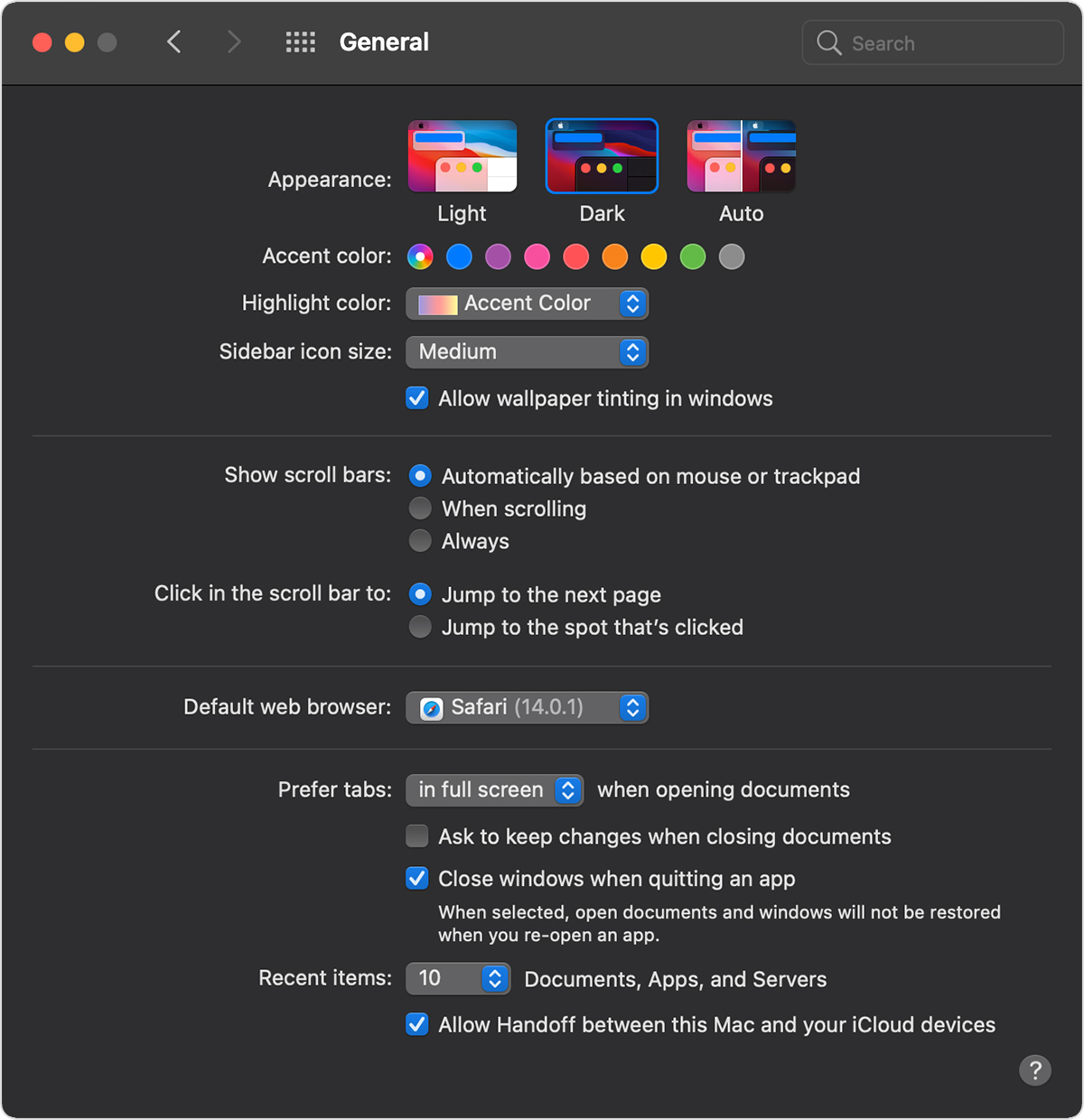
  1. Choose Apple menu > System Preferences
  2. Click General.
  3. Select one of the Appearance options at the top of the window:
  • Light: Use the light appearance.
  • Dark: Use the dark appearance.
  • Auto: Automatically use the light appearance during the day, and the dark appearance at night.

General System Preferences window with Dark Appearance selected

Read more about Mac’s Dark Mode on the Apple Support site.

Subscribe to get LITS News and Updates in your inbox.

Campus Power Outage

UPDATE
Internet service was largely restored at about 10:30 a.m. on November 16, with some parts of campus still offline. LITS and its partners continue to check for damaged or disabled network gear from the weather.

If you continue to experience issues with Internet connectivity, please contact the InfoDesk at 814-332-3768.

College personnel have been in contact with our internet provider about a weather-related internet and power outage that has affected both of our internet connections overnight. Power crews completed work on one of those connections around roughly 5:15 a.m. this morning, allowing network engineers to begin work on internet restoration. We are optimistic that this issue could be resolved this morning, but until we have further details, we cannot be specific about the time.

On the morning of Monday, November 16, ALERTAllegheny issued this notification:

Campus internet connectivity unavailable due to power/weather issue.  Engineers are repairing.  Updates provided as known.

LITS is aware of the issue and working with our service providers to restore connectivity.

Sign up for ALERTAllegheny for time-sensitive emergency notifications via email, text messaging, website alerts, social media and outdoor warning sirens to members of the Allegheny community.

Subscribe to get LITS News and Updates in your inbox.
Scheduled Network Outage

On Sunday, November 1, LITS will conduct required maintenance on the campus network between 6:00 a.m. and 8:00 a.m.

This will result in a temporary loss of Internet across campus, and the unavailability of some online services provided by Allegheny College. The service disruption is expected to last less than one hour.

LITS appreciates the patience of our campus community while we conduct this necessary maintenance. In case of emergency, please contact Public Safety at (814) 332-3357.

Tech Tip Tuesday: Deleting Outdated Passwords on a Mac

When you find that a password for a website or the wifi isn’t working, it’s possible that your Mac is retaining an older password. This is especially likely if your password has changed since the last time you used it on your Apple devices.

Macs use a feature called Keychains to store this information. While this is a useful feature, it can sometimes keep you out of an account if your password has changed.

You can delete outdated Keychain passwords. Here’s how:

1. Open the Keychain Access app from the Applications window on your Mac.
2. Find the Keychain you want to delete, and select it with a click.
3. From the File menu, choose Delete Keychain [keychain name].
4. Select Delete References.

The next time you visit the website or try to log onto the wifi, you will need to re-enter your username and your new password.

Brief Internet Disruption

LITS received a number of reports of Internet connectivity issues on the morning of October 21, 2020. The issue originated off campus, and appears to have been resolved. LITS will continue to monitor the situation in case of any recurrence.

Many thanks to those in our campus community who reached out to alert LITS to the issue. Please contact the InfoDesk if you are still experiencing any issues with connectivity on campus.

Subscribe to get LITS News and Updates in your inbox.

Tech Tip Tuesday: Manage App Shortcuts on Chromebook Desktop

Add, Move, and Remove App Shortcuts on Chromebook Desktop

You can add an app that you use often to your desktop on a Chromebook.

Add an app

  1. In the corner of your screen, click the Launcher  and then Up arrow .
  2. Find the app you want to add.
  3. Right-click the app icon.
  4. Click Pin to Shelf.

When you pin an app to your shelf, the app will stay there until you move or remove it.

Change the order of the apps

To change the position of an app:

  1. Click and hold the app you want to move.
  2. Drag it to a new position.
  3. Release to put the app in a new spot.

Remove an app

  1. Right-click the app you want to remove.
  2. Click Unpin.

Learn more

Google provides an interactive tutorial for working with apps on your Chromebook.

Subscribe to get LITS News and Updates in your inbox.

ALERT: Phishing attempt

A number of people across campus have reported receiving a suspicious email message containing a Google Form supposedly for a “Faculty Evaluation”.

This is a phishing attempt. We recommend that you report the email to Google as phishing.

LITS recommends never submitting your username and password via a Google Form. If you did not submit your username and password, your account should be unaffected. If you did happen to submit them, please change your password ASAP at the LITS Password Change page.

If for some reason you are unable to change your password, please let the InfoDesk know ASAP at infodesk@allegheny.edu or call us at 814-332-3768.

Many thanks to those who called this suspicious email to the attention of LITS.

Subscribe to get LITS News and Updates in your inbox.

Phishing Attempt

LITS has received reports of a phishing attempt disguised as a “2020 Faculty Evaluation” form received via email.
  • When you determine a message is phishing, please report it as phishing. Gmail includes an easy way to do this.  This will decrease the chances of the message landing in others’ inbox.
  • If the supposed sender is someone known to you, contact them using a different method and discuss the request–not using “Reply”.
  • Deleting the message is also appropriate.  If you already responded to the message, report any further communication related to your response as phishing, and do not respond further.

Important

If you did fill out the form, then it’s important to change your password as quickly as possible using the LITS Password Change form. If for some reason you aren’t able to change your password, please contact the InfoDesk ASAP at 814-332-3768 or email us at infodesk@allegheny.edu.
Thanks for those who called this to the attention of LITS.

Tech Tip Tuesday: Pin important emails to the top of your Gmail inbox

You can pin certain emails to the top of your Gmail inbox. Here’s how.

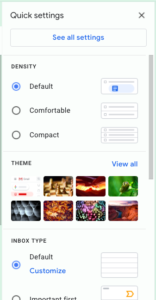
First, click on the little gear-shaped Settings icon in the upper right corner of your Gmail window. This will open a Quick Settings menu.

Quick Settings menu in Gmail

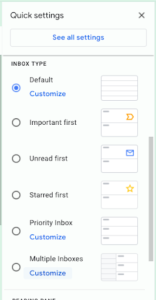
Scroll down to the section labeled Inbox Type.

Inbox Type menu in Gmail

Choose Starred first.

Close the Settings menu.

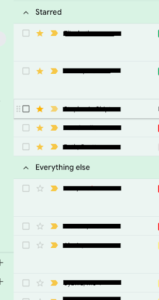
Then, in your inbox, simply click the star next to any emails you want to appear at the top of the list, in a separate section. It will add another section below the Starred section, labeled Everything Else. As you can see in the screenshot below, there are five starred email conversations in the inbox.

Gmail inbox sorted with starred items first

Any conversation that you have starred will stay at the top of the list until you remove the star (simply by clicking on the star again) or remove the conversation from your inbox by archiving or deleting it.

Similarly, you can pin unread emails to the top by choosing Unread first instead of Starred first.