Bulletin Updates

Tip Tuesday: Limit the Number of Responses in a Google Form Question

Some in our campus community have asked how to limit the number of responses to a question in a Google Form. Here’s how.

  1. In your form, make sure you choose “Checkboxes” for the type of question.
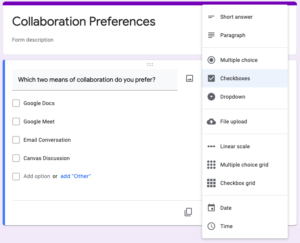
    Google Forms question type dialog box
  2. In the lower righthand corner, click on the three dots to show the “More” menu. Choose “Response validation”.
    "More" menu in a Google Forms question
  3. Choose “Select at most”.
    Response validation menu in Google Forms
  4. Fill in the maximum number of responses you want each respondent to give, and type in an error message that the form can give if the respondent exceeds the maximum.
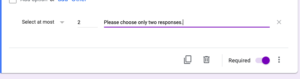
    "Maximum number of responses" dialog in Google Forms
  5. Alternatively, you can limit the number of responses to a minimum instead of a maximum–for instance, if you want each respondent to indicate at least two answers.
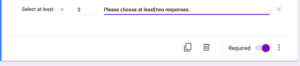
    "Minimum responses" dialog in Google Forms

Learn more about Google Forms in the Google Workspace Learning Center.

Subscribe to get LITS News and Updates in your inbox.

Introducing Research Thursdays Newsletter

LITS is rolling out a newsletter about research sources at the library! Stay up to date by subscribing to the LITS News and Updates. New posts will be published on a biweekly schedule. 

Since this is the first week, we’d like to highlight Adam Matthew Digital, an essential database for primary source materials that hosts millions of primary source records across many different disciplines. The Adam Matthew Digital database organizes material into curated subject areas. In addition to primary source access, each subject collection offers access to data visualizations, copyright information, and information about institutions who contributed materials.

Users who are new to Adam Matthew Digital can orient themselves with the detailed interface by viewing instructional videos created by Adam Matthew support staff.

Tip Tuesday: Use Breakout Rooms in Google Meet

With Allegheny College’s newly implemented G Suite Enterprise for Education, faculty and other employees can now use breakout rooms to divide participants into smaller groups during video calls in Google Meet. Breakout rooms must be started by moderators during a video call on a computer. Any employee who schedules or starts a meeting will be the moderator. Breakout rooms currently can’t be live streamed or recorded.

You must be signed into your Allegheny Google account to participate in breakout rooms.

How to Create breakout rooms

  1. On your computer, start a video call in Google Meet.
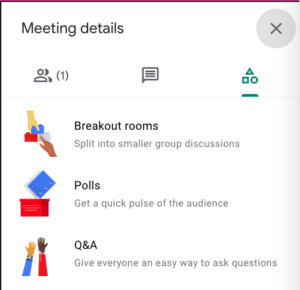
  2. In the top right, click Activities  right arrow Breakout rooms.
    "Meeting details" dialog in Google Meet
  3. In the Breakout rooms panel, choose the number of breakout rooms.
  4. Call participants are then distributed across the rooms.
  5. To manually move people into different rooms, you can:
    • Enter the participant’s name directly into a breakout room.
    • Click the participant’s name. Hold down the mouse, drag the name, and then drop it into another breakout room.
    • To randomly mix up the groups again, click Shuffle .
  6. You can also choose whether to rename the rooms by clicking on the room name itself.
  7. In the bottom right, click Open rooms.

Use a Breakout Room Timer
  • You can set up a timer for your breakout rooms. Each room will display a 30 second countdown before the timer ends.
  • At the top of the breakout rooms panel, click TimerEmpty hourglass.
  • Set the timer amount then click OK.
  • You can edit or remove the timer at any time. On the breakout room panel, click TimerEmpty hourglass to edit.

You can also close breakout rooms manually:

    • In the Breakout rooms panel, at the top right, click Close rooms Rooms.
    • In the notification window that appears, click Close all rooms.

Learn more about Using Breakout Rooms in Google Meet.

Subscribe to get LITS News and Updates in your inbox.

Tip Tuesday: Set Your Status as Away in Google Chat

Did you know can choose from several status options in Google Chat? You can set your status as available, away, or busy until a set time. When you set your status to away, you will appear offline to others even if you are using Google Chat. This can be a useful way to communicate to others that you are not available.

To adjust your Google Chat settings, follow these instructions:

  1. Go to your Gmail or Google Chat account.
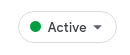
  2. Look for the Google Chat status menu. The default setting is Active.
    Google chat status menu set to Active
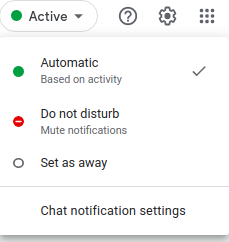
  3. To change your status, click the menu and select a new status from the dropdown list. In Gmail, the dropdown menu will look like this.Google chat dropdown menu in Gmail

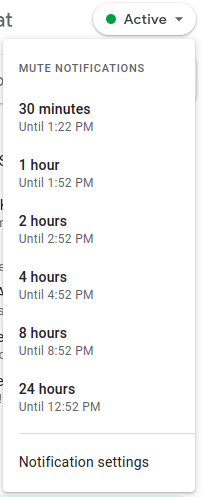
    In Google Chat, the dropdown menu will look like this.

    Google Chat dropdown in Google Chat

  4. If you want to be away long-term, set your status to “Away”. Otherwise, select “Do not disturb” for up to 24 hours.


Read more about adjusting your Google Chat status settings

Subscribe to get LITS News and Updates in your inbox.

RefWorks Scheduled Maintenance

RefWorks will experience a downtime for a short period of time so that ExLibris can conduct scheduled maintenance.  We are expecting a down time of up to 2 hours. This will be  communicated to all users through an in-app announcement.

When: Starting 11:00 PM Saturday December 19, 2020 Eastern Standard Time and for up to 2 hours.

Tip Tuesday: Schedule messages in Gmail

You can schedule messages in Gmail to be sent at a later date. This can be useful for reminders to yourself or others, or for communications where the time and date of delivery are especially important. Here’s how.

  1. On your computer, go to Gmail .
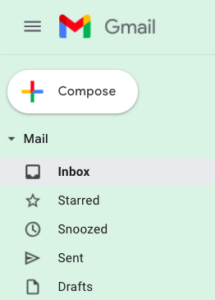
  2. At the top left, click Compose.
    "Compose" button in the Gmail interface
  3. Create your email.
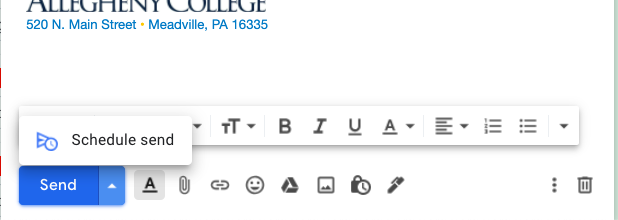
  4. At the bottom left next to Send, click the dropdown arrow More send options.
    "Send" button with "Schedule Send" option chosen in Gmail
  5. Click Schedule send.
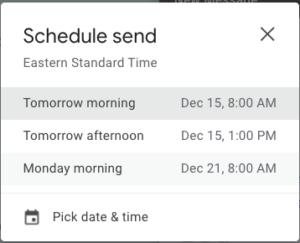
  6. Choose one of the suggested options, or click Pick date & time.
    "Schedule send" dialog box in Gmail
  7. You’ll see an alert pop up that says that your email has been scheduled.
    "Your email has been scheduled" popup in Gmail

Read more about scheduling emails.

Subscribe to get LITS News and Updates in your inbox.

Possible Phishing Attempt

LITS has received reports of a possible phishing attempt. Employees have reported email messages similar to the following:

  • Good Morning, I have a student here that is in need of your help. Would you be able to schedule a time for us to talk more, so that I can provide additional information? Thank you!!

The sender typically claims to be connected with another college or university, but the sender’s email address is not from a .edu domain associated with that institution.

If you receive a similar email, especially if you do not recognize the sender’s name and have not interacted with the institution they claim to be from, it’s best to report the email as phishing.

LITS thanks those who brought this most recent attempt to our attention. If you have questions or concerns, please email the InfoDesk or call us at 814-332-3768.

Tech Tip Tuesday: Translate Closed Captions in Google Meet with Chrome

You can translate the captions in Google Meet to another language using the Chrome browser.

First, turn on captions for any Google Meet you are attending. Move your mouse over the screen, and a white bar should pop up at the bottom. Click on Turn on Captions.

Screenshot of Toolbar in Google Meet

Then right-click on the lower part of the screen, where the captions appear, and choose Translate to English. (This part is a little confusing, because it should already be in English. Bear with us!)
Screenshot of Google Meet Caption area

You’ll notice a small Google Translate icon appear in the address bar at the top of your Chrome browser (where the URL appears).

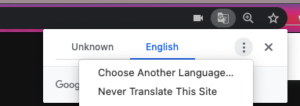
Click on the Translate icon, and then choose the three-dot menu:

Screenshot of Google Translate dialog box

Click on Choose Another Language… You will be given a choice of dozens of languages.

Screenshot of language selection options in Google Translate.

The captions will automatically translate into the language you choose. (So will any chat posts in the Meet.)

Bear in mind that automatic computer translation is prone to errors, so don’t rely on this to provide a perfect translation.

Subscribe to get LITS News and Updates in your inbox.

Tip Tuesdays: Recording Your Presentation

As we near the end of the semester, here’s a reminder for faculty and students that you can record a presentation using Google Meet.

A few things to bear in mind:

  • You can use Meet to record video of yourself, or to record audio over a slideshow or other presentation that you’ve prepared. This is a great way to add audio to your Google Slides presentation, for instance.
  • Meet recordings are automatically saved to your Google Drive in a folder titled “Meet Recordings” and can be shared like any other file in your Google Drive.
  • You have unlimited storage for Meet recordings.
  • If other people are participating in your Google Meet, please remember to get their permission to record.

Subscribe to get LITS News and Updates in your inbox.

Tip Tuesday: Change Your Voicemail Greeting

While out of the office for any extended period of time, you may wish to change the greeting that callers will hear before leaving a voicemail. Employees can change their greetings in the campus phone system whether on or off campus.

  1. From off campus: Dial your extension’s full number (e.g., 814-332-xxxx, where xxxx is your 4-digit extension)
    From on campus: Press the voicemail button on your desk phone.
  2. Press the pound key (#) when the recording starts.
  3. Enter your 4-digit extension.
  4. Press the star (*) when the next recording starts.
  5. Enter your voicemail passcode (PIN). If you aren’t sure what your PIN is, please contact the InfoDesk at infodesk@allegheny.edu.
  6. Press 8 for user options.
  7. Press 4 to change your greeting.
  8. Press 7 to record a new greeting.
  9. Record the greeting, then press the pound key (#).
  10. Press 7 to listen to the new greeting.
  11. Press 3 to discard and try again, or 9 to save the new greeting.

Subscribe to get LITS News and Updates in your inbox.