Today’s tip comes from InfoDesk Manager Kirsten Hauser. Here’s a brief video on how to create a private Google Meet from your Google Calendar.
Tip Tuesday: Create a Private Google Meet
March 2nd 2021
March 2nd 2021
Today’s tip comes from InfoDesk Manager Kirsten Hauser. Here’s a brief video on how to create a private Google Meet from your Google Calendar.
February 16th 2021
When you’re planning to be out of office, you can set an automatic vacation reply in Gmail. Here’s how:

 See all settings.
February 9th 2021
In Google Calendar, you can define a stretch of time when you will be out of office. This can be a few hours, a particular day, or a range of days. When you indicate you’re out of office, your calendar will automatically decline all meetings during that time, using a custom decline message if you choose.
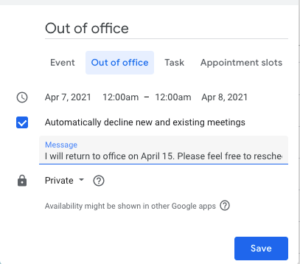
During the time when your status is set to Out of office, others who contact you through Google Chat messages or Gmail will see a notification alerting them to that fact. So will users who mention or tag you in comments in a Google Doc.
February 2nd 2021
With so many of the college community working from laptop computers, it’s useful to keep some basic guidelines in mind for taking good physical care of your laptop. Here are some tips:
January 29th 2021
Starting at 6 a.m. on Sunday, January 31, those who are on campus may experience some intermittent downtime on our wireless networks. This is a result of routine weekly maintenance and is expected to be completed within two hours.
If you are still experiencing wireless connectivity issues after 9 a.m. on Sunday, January 31, please open a Web Help Desk ticket.
As always, in case of emergency, contact Public Safety at (814) 332-3357.
January 26th 2021
Did you know you can forward an entire Gmail conversation thread at once? This can be useful if you want to bring someone new into the conversation without having to forward every individual email that’s been exchanged so far. It will save you and the new participant time sorting through each message one at a time.
Gmail offers a way to forward an entire email conversation all bundled into a single email, in chronological order with the oldest messages at the top.
To forward a conversation, first open it in Gmail on your computer. Then click on the “More” menu (the three dots in the toolbar at the top of the conversation.) Choose “Forward all.”
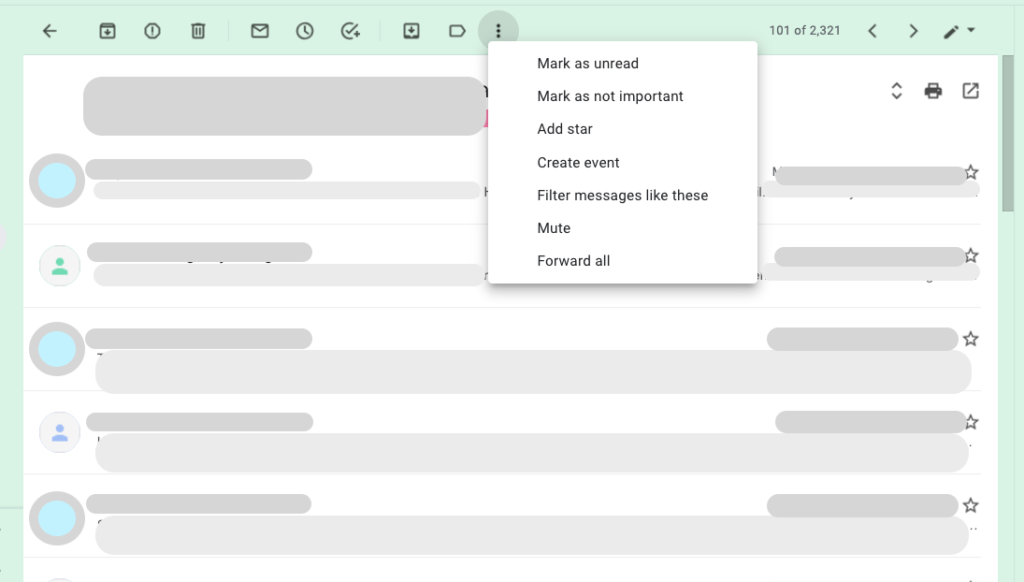
This will create a new message with the entire conversation all in one place.
You can then choose recipients and, if you like, add additional text at the top of the message. Click on the blue “Send” button and the recipients will get a single email message containing the entire Gmail conversation thread.
All attachments in the thread will also be included.
Note: “Forward all” will not show as an option in a conversation with only one message.
December 15th 2020
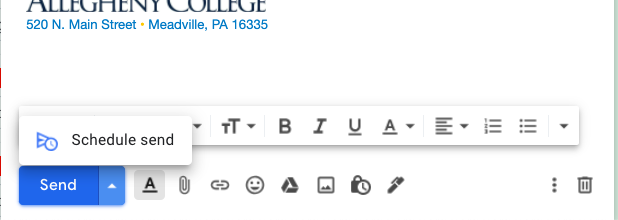
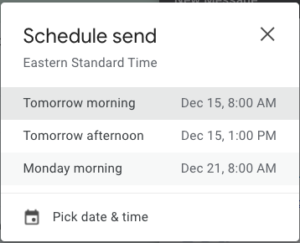
You can schedule messages in Gmail to be sent at a later date. This can be useful for reminders to yourself or others, or for communications where the time and date of delivery are especially important. Here’s how.
 .
.
 .
.

December 8th 2020
You can translate the captions in Google Meet to another language using the Chrome browser.
First, turn on captions for any Google Meet you are attending. Move your mouse over the screen, and a white bar should pop up at the bottom. Click on Turn on Captions.

Then right-click on the lower part of the screen, where the captions appear, and choose Translate to English. (This part is a little confusing, because it should already be in English. Bear with us!)

You’ll notice a small Google Translate icon appear in the address bar at the top of your Chrome browser (where the URL appears).
Click on the Translate icon, and then choose the three-dot menu:
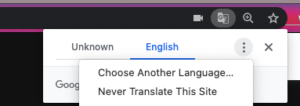
Click on Choose Another Language… You will be given a choice of dozens of languages.
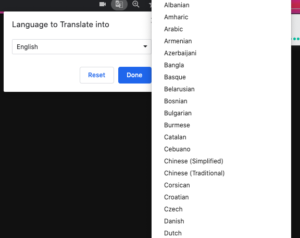
The captions will automatically translate into the language you choose. (So will any chat posts in the Meet.)
Bear in mind that automatic computer translation is prone to errors, so don’t rely on this to provide a perfect translation.
November 10th 2020
Today’s Tech Tip for our Firefox users comes from Leo Babauta at Lifehack.
Learn about keyboard and mouse shortcuts in Firefox, speeding up Firefox, using keywords, customizing buttons, and more. Head on over to Lifehack to check out all 15 tricks.
October 29th 2020
On Sunday, November 1, LITS will conduct required maintenance on the campus network between 6:00 a.m. and 8:00 a.m.
This will result in a temporary loss of Internet across campus, and the unavailability of some online services provided by Allegheny College. The service disruption is expected to last less than one hour.
LITS appreciates the patience of our campus community while we conduct this necessary maintenance. In case of emergency, please contact Public Safety at (814) 332-3357.